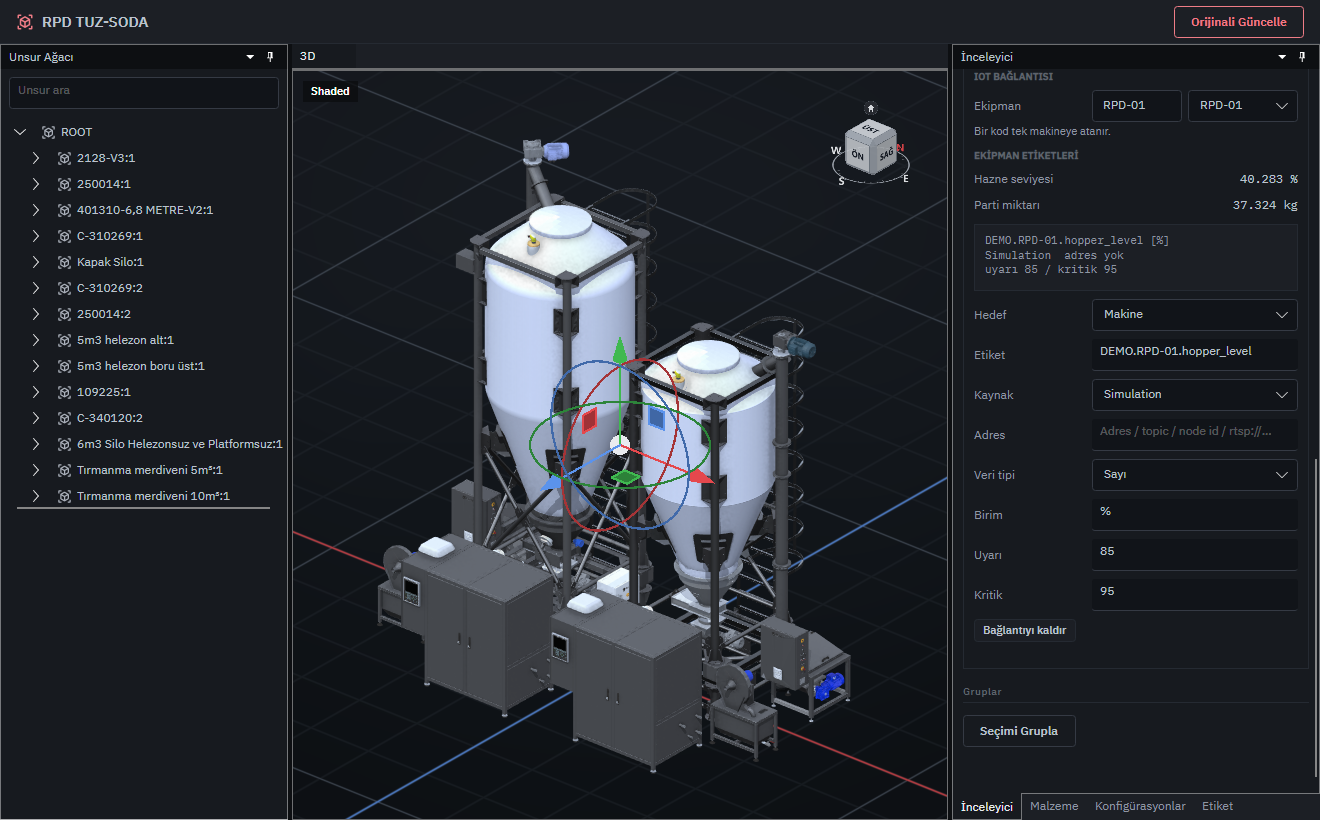
Map the hopper-level tag.
Link the tag to RPD-01. Select its data source, unit and thresholds in the tag settings.
- Readings for the selected equipment
- Units and warning limits
- This demonstration uses sample data.

Select equipment in the facility model to view readings such as level and mass beside it.
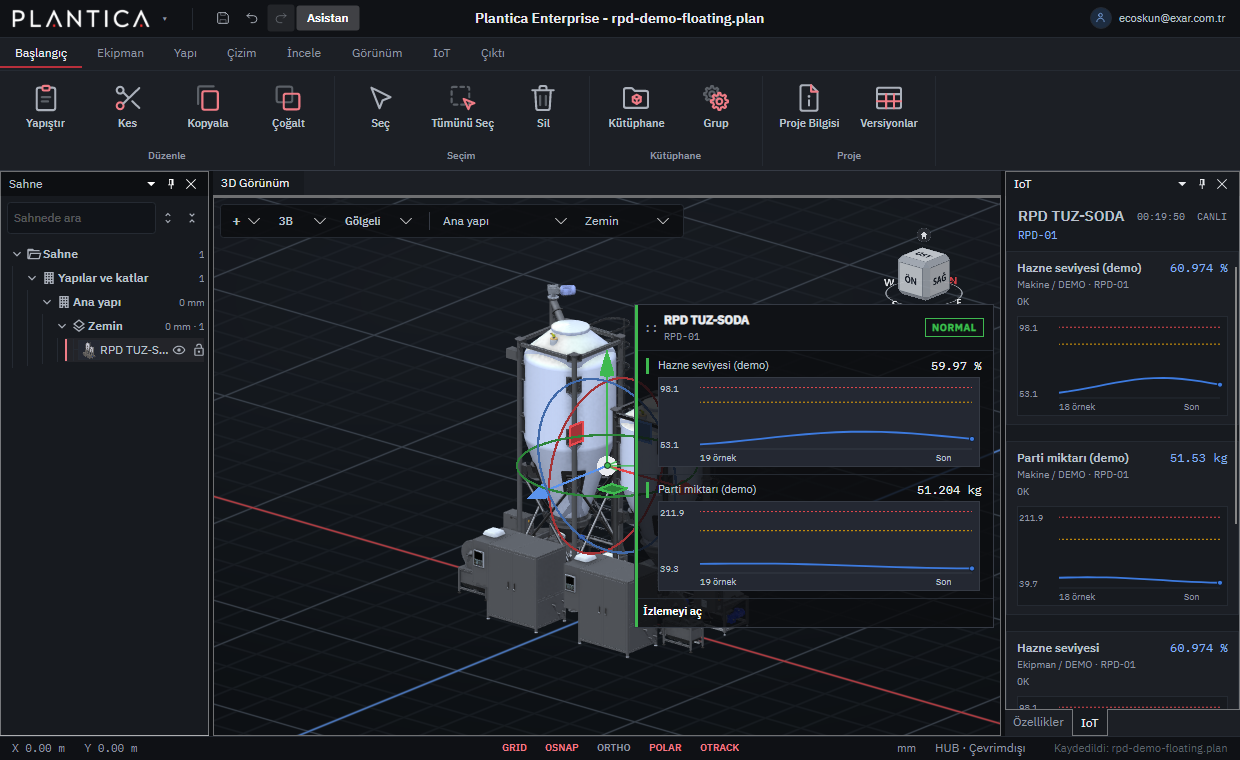
Link the hopper-level tag to RPD-01. Read the level and batch mass in the panel beside the equipment.
Link the tag to RPD-01. Select its data source, unit and thresholds in the tag settings.
Select RPD-01 and open its data panel. The equipment’s location remains visible while the panel is open.
From a maintenance notebook to asset history and a shared model. Failure records, sensor readings and results are fictional demo data, not measured customer outcomes.
The video could not load. Check your connection and retry, or open the video directly.
An equipment group and the data sources you want to connect
Select the equipment in the facility model and establish its asset identity.
Choose the tag, unit and data source to link to the equipment.
Open the floating panel to read hopper level and batch mass.
Read tags, units and values in the panel beside the selected equipment.
Data sources, document and maintenance-record connections depend on your project’s access and refresh requirements.
Projects and example workflows for Plantica Operations.
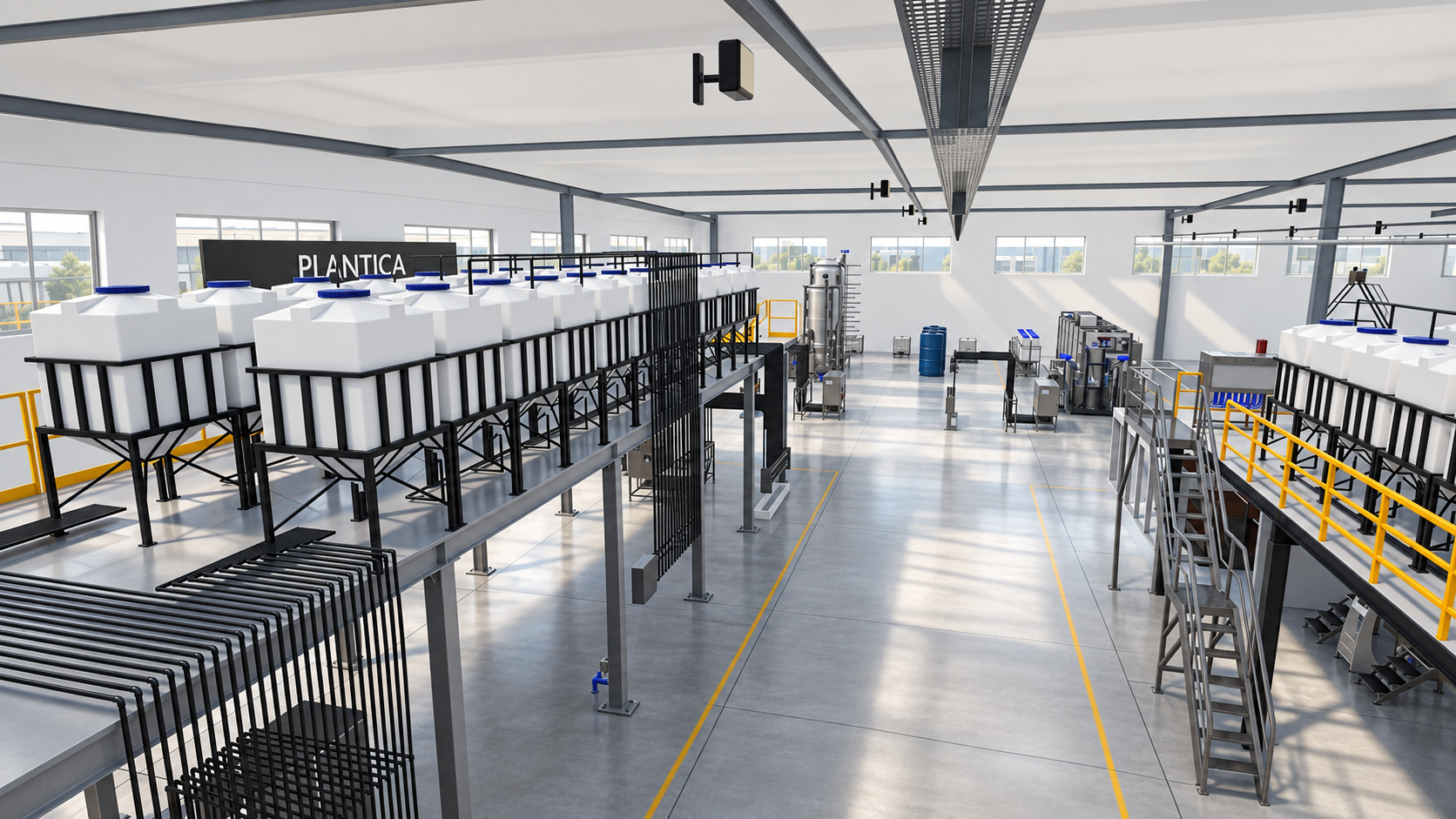
ELİAR equipment · Demonstration textile facility
An example dyehouse with ELİAR equipment. Present the layout to your customer, review pipe routes and find equipment information through the model.
Explore the workflow →Example scenario · Maintenance preparation
A workflow for reviewing a work order, technical document and selected signal around the same equipment.
Explore the workflow →Plantica Operations shows an asset’s location together with its linked information. It does not claim to replace source systems such as SCADA, historians, CMMS or EAM. Connection scope is defined after reviewing asset identifiers, access methods and update requirements; a ready-made connection to every system should not be assumed. Review the data connection scope
The website’s Operations demonstration uses Plantica’s simulation source for values such as hopper level and batch quantity. The captures show equipment selection, tag configuration and a floating data panel. They are not evidence of a deployed connection to a customer’s live production system. Explore the demonstration facility and data scope
Define a source, unit and thresholds for the data tag. Select the equipment to open its linked values in the panel.
First, identify the source systems, equipment identities and access method. Work required for document and maintenance-record connections is included in the project scope.
An equipment group, a facility model if available, and the data sources you want to connect.
Share the equipment you want to inspect and the data sources you want to connect.